6. Registering a Hotel: Rate
Tags: Extranet
Now we will look at the types of rates that can be registered within the hotel. In step 6 of the hotel registration process, we have “Rate”. Click on it and a submenu will appear with four types of rates:
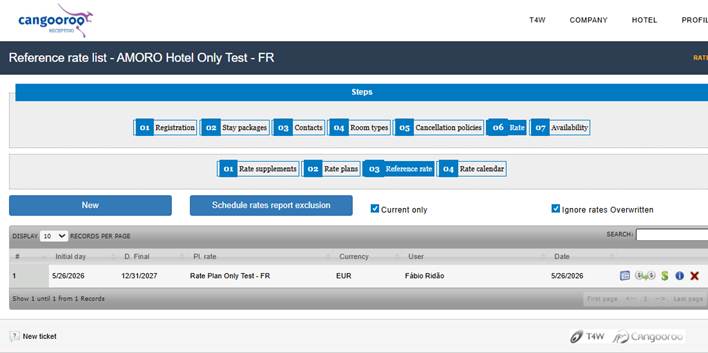
There are four types of rates within the hotel registration flow. In this article, we will understand how each one works.
? Tip: Don’t forget to click “Active” and “Save” when registering any new rate type.
1. Rate Supplements
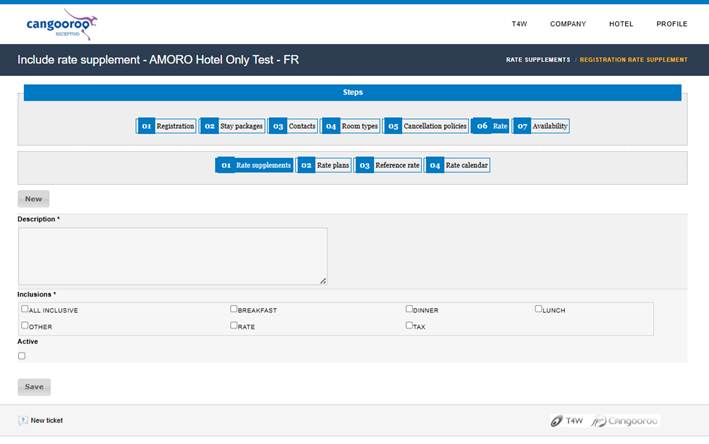
Here you can register extra services that the hotel may offer, such as: a special dinner, round-trip airport transfer, bottles of wine, etc. This depends on what the hotel offers, which is why this rate type is not mandatory.
To register a new supplement, click “New”. You will fill in the fields according to the type of supplement:
Description: The supplement you want to register
Inclusion: The category it belongs to. If you cannot find a suitable option, choose “other”
Calculation Type:
Per Person: if the price is charged per guest
Per Room: if the price is charged per room
Per Night: if it is multiplied by all nights of the stay
Per Stay: if it is valid for the entire stay (charged only once)
2. Rate Plans
This configuration works together with the next rate type (Reference Rate). It allows you to have different types of rates (competing rates) within the same period without one overriding the other.
For example, a hotel may offer three meal plans: room only, bed & breakfast, and all inclusive. In order for the system to understand that these three rates are available at the same time, you must create three different rate plans.
To register them, click “New”, and a screen with the following fields will appear:
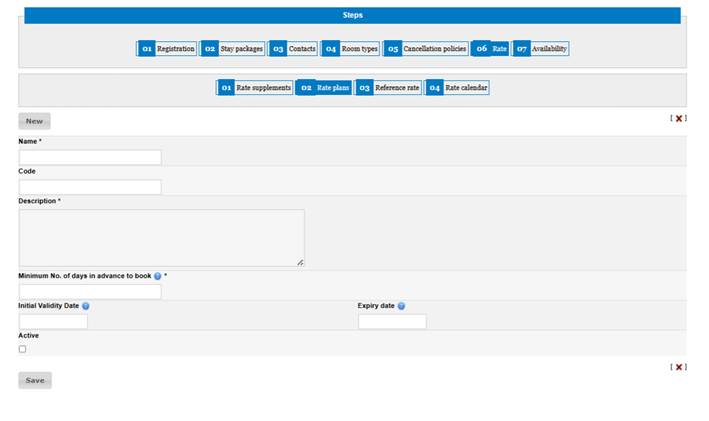
Name: The rate name. You can name it however you like; in the example, we use “Rate 1”.
Code: If your operation or the hotel has a code for this rate type, you can enter it here.
Description: A description of this rate type.
Minimum Advance Booking: How many days in advance before the check-in date are required in order to book under this rate.
Start Validity Date: The period in which this rate is valid.
? Tip: Remember that only fields marked with * are mandatory.
3. Reference Rate
This is where we register the actual rates.
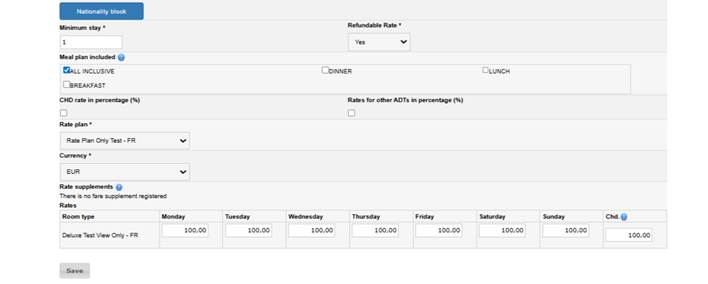
Click “New” and the following fields will appear:
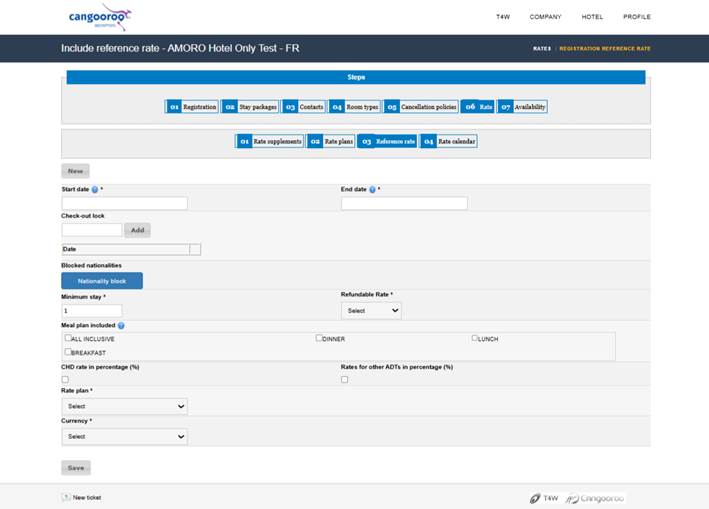
Start Date and End Date: The period in which this rate is valid.
Minimum Stay: The minimum number of nights the guest must stay in order to book this rate.
Refundable Rate: Indicates whether the rate is refundable or not. If it is not refundable, the system will not consider the cancellation policy registered in Step 5.
Included Meal Plans: Indicates which meal plan is included in the rate. This field is not mandatory.
Rate Plan: The rate plan to which this rate belongs. Following the example, we registered the breakfast rate linked to “Rate 1”. Since we will have two other competing rates (room only and all inclusive), we need to create other rate plans so they can be linked accordingly.
? Tip: As mentioned above, Rate Plans and Reference Rates work together, as this is how the system differentiates rates within the same period. If you register only one rate plan and three reference rates for the same period, the system will consider the last reference rate registered.
Currency: The currency in which the rate will be charged.
As fields are filled in, additional fields will appear.
English
Rate Supplements: If you want to add them to the rate, the supplement value will be added to the final booking amount. The supplement must be registered in the same currency as the rates.
Rates: The rate value per room type (registered in Step 4 – Room Types).
? Tip: CHD value fields will only appear for rooms that allow children (CHD), as configured in Step 4.
4. Rate Calendar
A more dynamic view of rates, where it is possible to make specific adjustments to pricing.
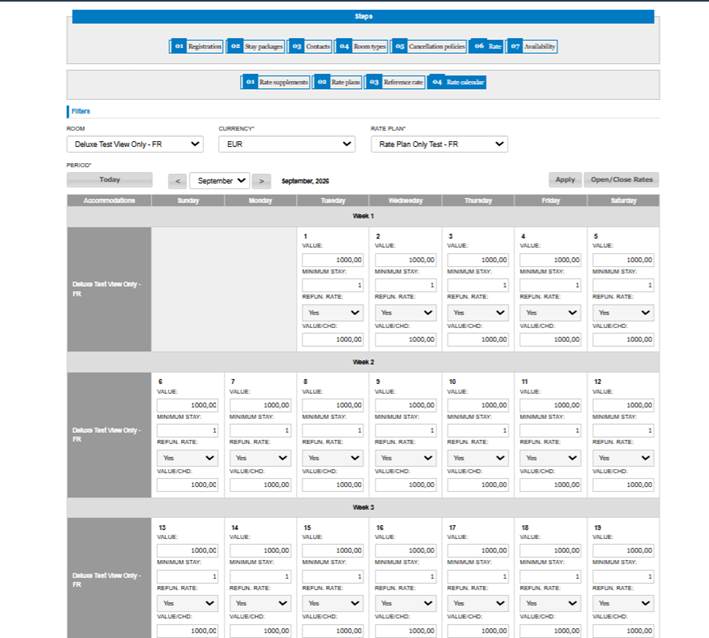
To be able to edit calendar information, it is necessary to filter by room type, currency, rate plan, and period. Click “apply” and view the daily rates for the selected month. To modify the information in the panels, simply click on the fields.
Open/Close Rates: the system allows you to create stop sales (sales restrictions) on specific rates by room and/or rate plans.
Was this article helpful to you?
Was this article helpful?
That’s Great!
Thank you for your feedback
Sorry! We couldn't be helpful
Thank you for your feedback
Feedback sent
We appreciate your effort and will try to fix the article